![Screenshot 2025-05-28 09.12.17-1.png]](https://support.orlo.tech/hs-fs/hubfs/Screenshot%202025-05-28%2009.12.17-1.png?height=40&name=Screenshot%202025-05-28%2009.12.17-1.png)
Things to consider ✅
-
To access the Voice of the Community module, users will need to enable the 'View VOC Module', 'Manage VOC Projects', and the 'VOC Reporting' permissions in the user settings area.

Benefits 🙌
-
Turn Data into Strategy: Convert survey data into structured tasks, ensuring your resources are always focused on the issues that matter most to your community.
-
Demonstrate Tangible Impact: Move beyond data collection to "close the loop" with your audience, proving that their feedback leads to real-world improvements and building long-term trust.
1. Navigating to the Voice of the Community Area
2. Generating an Executive Summary Report from your Survey Report
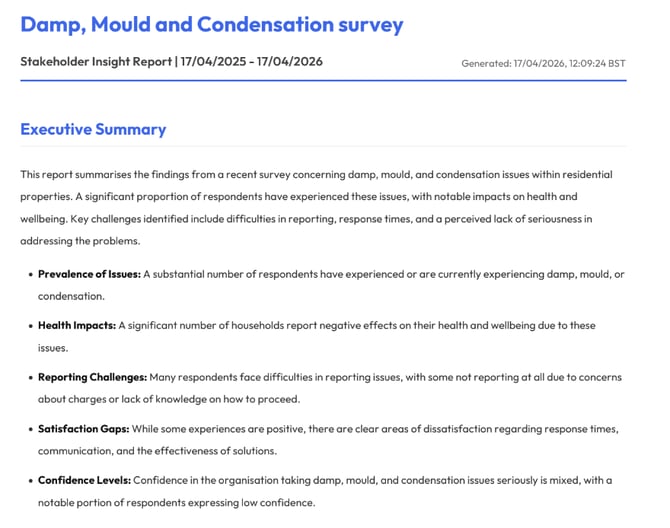
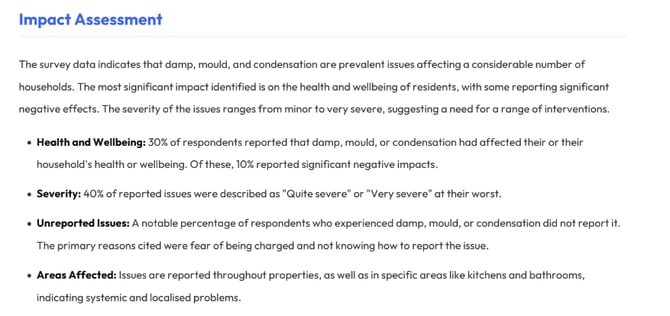
Example Snippets from the Executive Summary Report
Navigating to the Voice of the Community Area
1) Navigate to the 'Voice of the Community' button on the Orlo top dashboard.
2) Once in the main Voice of the Community area, click on 'Projects' in the left-hand sidebar.
3) Click the name of the project you wish to access. You can use the search functionality to find specific projects quickly. This will take you to the project overview page.
4) From the project overview, click the 'Survey Responses' tab at the top of the page to view the results associated with that project.
Generating an Executive Summary Plan from your Survey Report
1) Within the survey results report, navigate to the 'Survey Deep Dive' button. This will send users an email of the action plan.