![Screenshot 2025-05-28 09.12.17-1.png]](https://support.orlo.tech/hs-fs/hubfs/Screenshot%202025-05-28%2009.12.17-1.png?height=40&name=Screenshot%202025-05-28%2009.12.17-1.png)
Benefits 🙌
-
The AI Profile Summary provides an instant overview of a contact's historical interactions, ensuring you understand the relationship and any previous issues.
-
Reduce Response Times - Cut down on manual typing and generate high-quality drafts instantly, allowing your team to handle higher message volumes with ease.
AI Inbox Snippets
1. Navigate to the Inbox: Click the Inbox icon in the top navigation bar.
Note: If you use the Orlo Dashboard view, AI snippets work the same way. To access these, click the 'Manage' dropdown and select your chosen dashboard to find the inbox widgets.
2. Select a Message: Once in the Inbox view, click on the specific message you wish to reply to.
3. Generate a Snippet: At the bottom of the inbox area, just above the reply box, click the 'Generate snippet' icon to create AI-driven responses.
4. Refine Results: You can choose to regenerate results to see additional options or minimise the snippet generator tab if needed.
5. Send Your Reply: Once you have selected a snippet, click 'Reply + On-Hold', 'Reply + Resolve', or your preferred action button to send the message.
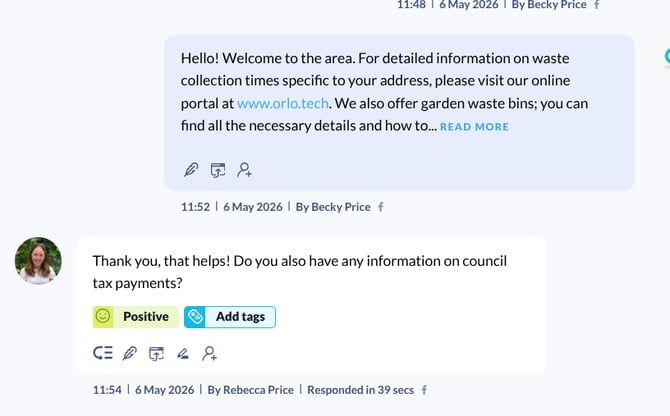
Example Snippet:
AI profile Summary
1. When in the inbox or the inbox view via the dashboard, navigate to the profile information on the right-hand side of the message. In this area, click on the 'View Smart Summary' button to generate the profile information based on all historical messages with that individual.