![Screenshot 2025-05-28 09.12.17-1.png]](https://support.orlo.tech/hs-fs/hubfs/Screenshot%202025-05-28%2009.12.17-1.png?height=40&name=Screenshot%202025-05-28%2009.12.17-1.png)
For further help and guidance, we can be contacted via Live Chat or our new Customer Portal.
If you would like to speak to us via Live Chat, you can do this by clicking on the Live Chat widget on the top right of the Orlo browser, then 'Live Chat Support'
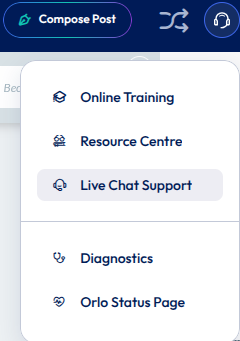
We're open from 08:00 - 18:00 Monday to Friday, excluding Public Holidays.
If you're trying to get in touch out of hours, or you'd rather send an email, we now have a new Customer Portal, where you can view tickets you've raised, see their status, and create new tickets!
You can access our new Customer Portal via this link here, or by clicking on 'Customer Support Portal' at the top right of the page when in the help section.
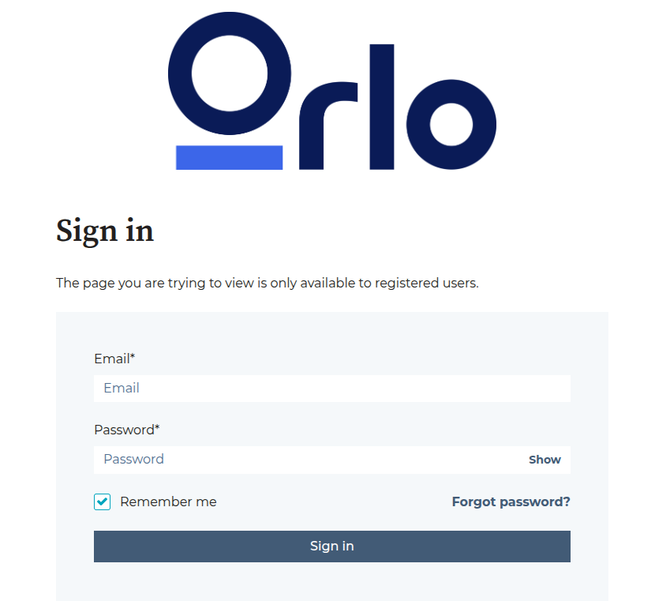
When clicking on the link for the first time, you'll see this screen and will need to create a new login:
When you've signed in, you'll see a list of all tickets you've raised with us in the main section of the page. On the top left, you can use the search bar to find tickets using keywords or the ticket number if you already know it
To create a new ticket, click 'Submit a Support Ticket' on the top right, then fill in the fields and click 'Submit '
When submitting your form, consider the questions below when describing what you need help with:
- Description of the issue
- Where in the platform are you seeing this issue?
- Which users are experiencing this issue?
- What impact is this having on your business?
- Any additional notes
Give it a few seconds, and your new ticket will display at the top! Click on your new ticket to see the details you gave us in the form, including attachments, and any emails we've send back to you. You can also send us any further information or respond to us at the bottom where it says 'send message'
What does each ticket status mean?
- Unassigned/New - The ticket is new and has not yet been assigned to a member of the team
- Assigned - The ticket has an owner, and we will be investigating
- In Progress - This usually means we're awaiting a screen share or further information from a third party
- With Customer - We're waiting on a reply from you
- With Developers - Our Developers are currently investigating your issue/query
- Awaiting Sprint - Our Developers will be working on a fix soon. It's in the queue!
- In Sprint - Our developers are working on a fix. When in this status, it usually means it will be complete within 2 weeks
- Closed/Resolved - Your ticket is now resolved!
- No Further Action
Things to consider ✅
Including screenshots or screen recordings can greatly assist us in identifying the specific area where you need help and in diagnosing any issues you may be experiencing.