![Screenshot 2025-05-28 09.12.17-1.png]](https://support.orlo.tech/hs-fs/hubfs/Screenshot%202025-05-28%2009.12.17-1.png?height=40&name=Screenshot%202025-05-28%2009.12.17-1.png)
Things to consider ✅
-
The keyword option for Nextdoor listening is separate from Orlo’s standard Boolean search logic used in the Insights stream area.
-
Listening results will include the text of public posts that match the keyword and location radius specified in your source area.
-
Once your stream is configured, the system will pull historical data from the last seven days and check for new results hourly.
-
For keyword searches, you can add one singular keyword or one singular phrase to your stream.
Benefits 💡
-
Gain Local Insight: Monitor indirect mentions from community members across a broad geographic radius on Nextdoor.
-
Unified Reporting: Compare Nextdoor data against other social sources using the Orlo Insights reporting suite.
Setting Up a Listening Stream
As the keyword option for Nextdoor is separate from the usual Boolean logic used in Orlo's standard listening stream setup, you do not need to add keywords for Nextdoor until you reach the Sources section within the 'Create a Stream' area. For a comprehensive guide on building a stream from scratch, please refer to our 'Creating a Listening Stream' article.
Selecting Nextdoor as a Source
Once in the Sources section of the stream builder, switch on the 'Nextdoor Listening' toggle. This will display the specific configuration options for Nextdoor.
Adding a Keyword to Your Nextdoor Listening Stream
After enabling the Nextdoor Listening option, the next step is to enter the specific keyword or singular phrase you wish to monitor.
Example: In the video below, the phrase 'Birmingham City Council' has been used.
Setting Up a Radius for Nextdoor Listening
The final step in adding Nextdoor as a source is to define the geographical radius for your results.
-
Select your target area (e.g., Birmingham) and set the desired distance (e.g., 25km).
-
To adjust the coverage, simply click on the map and modify the distance in the Radius box.
-
Once these steps are complete, click 'Save Stream' in the top right-hand corner to activate your listening stream.
Users can then see listening results through the Dashboard area and Insights Reports in Orlo.
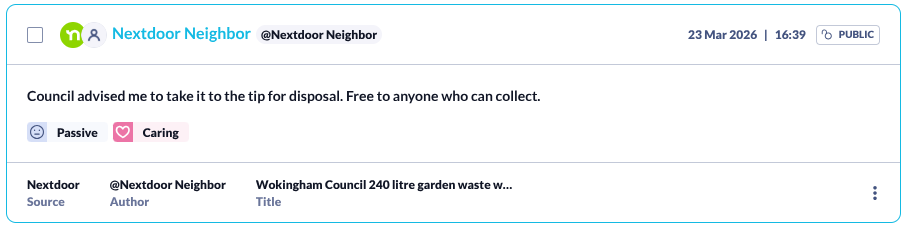
Example Result: