![Screenshot 2025-05-28 09.12.17-1.png]](https://support.orlo.tech/hs-fs/hubfs/Screenshot%202025-05-28%2009.12.17-1.png?height=40&name=Screenshot%202025-05-28%2009.12.17-1.png)
Things to consider ✅
-
'Active directory' needs to be enabled in your instance. If you're unable to see this within your settings, under 'Authentication', please contact our Support Team
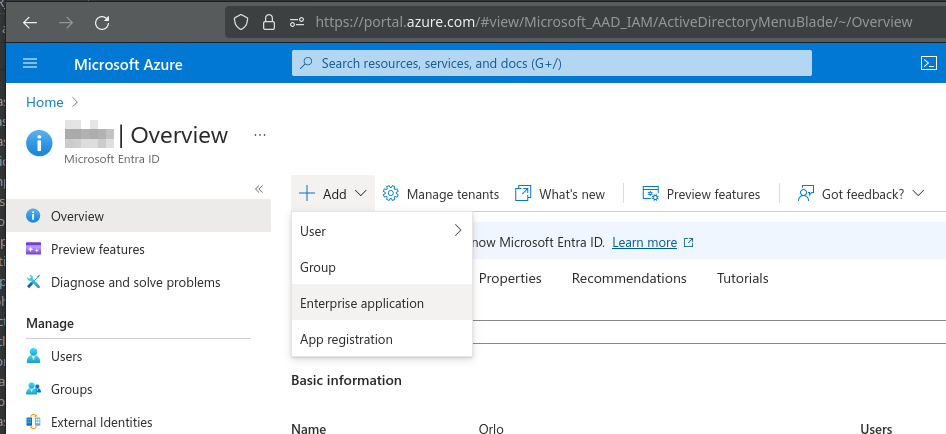
Create Enterprise App within Azure -> Microsoft Entra ID -> Add -> Enterprise Application - https://portal.azure.com/#view/Microsoft_AAD_IAM/ActiveDirectoryMenuBlade/~/Overview
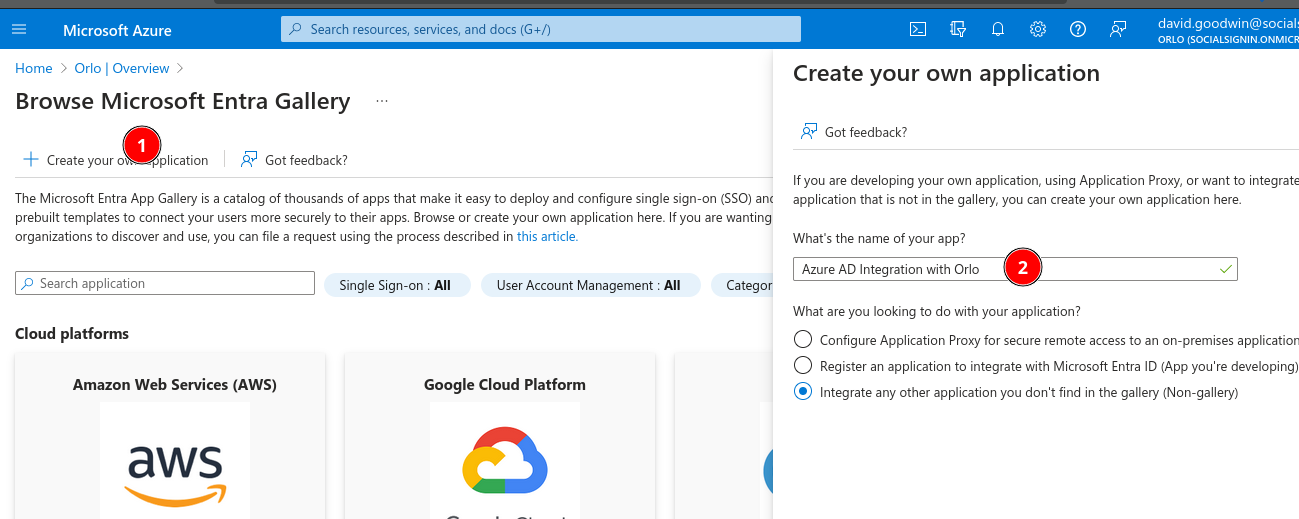
Click on ‘Create your own application’ (1) and then choose ‘Integrate with any other application you don’t find in the gallery….’ (2)
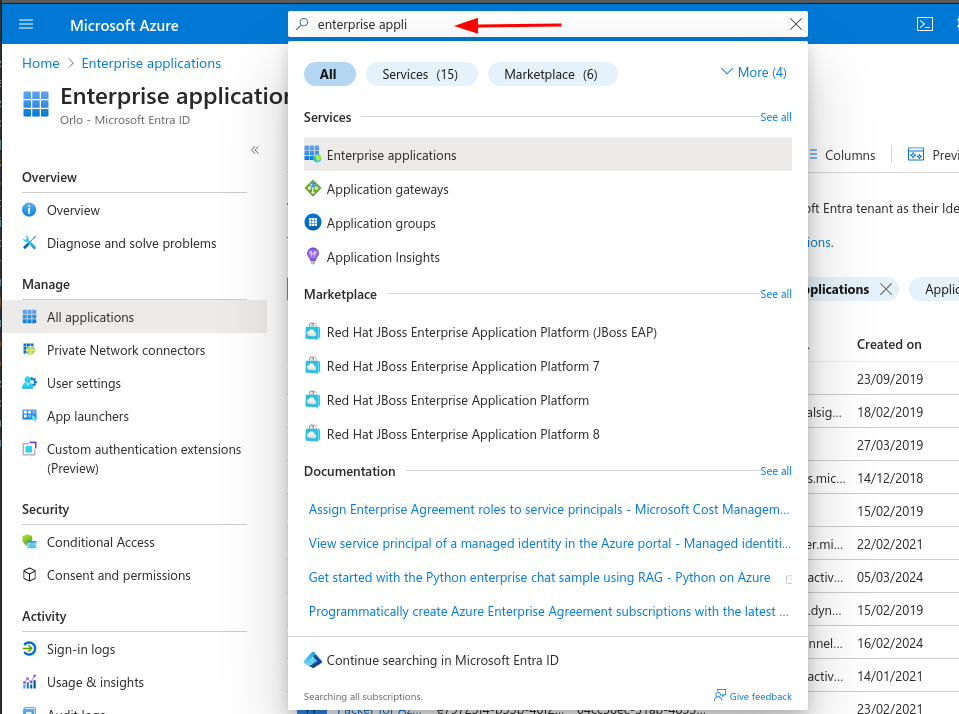
Once it’s created, browse to it - the easiest way is to do a global search for ‘Enterprise applications’
Then click through to your application :
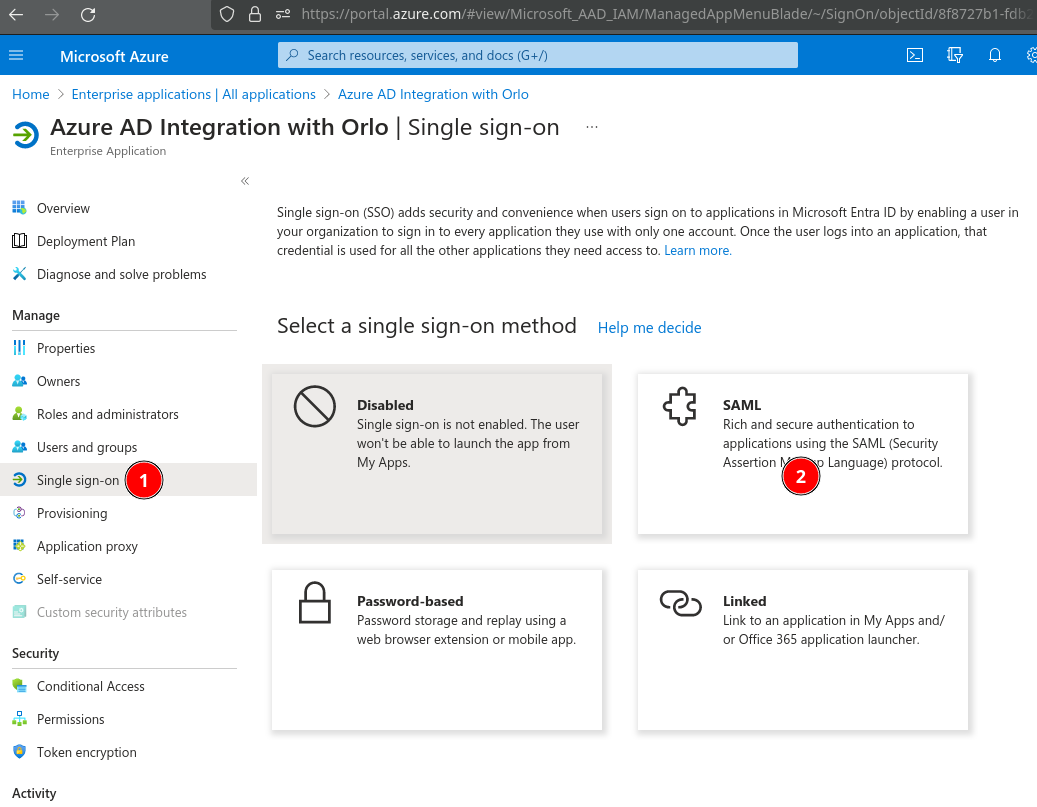
And choose a SAML based integration.
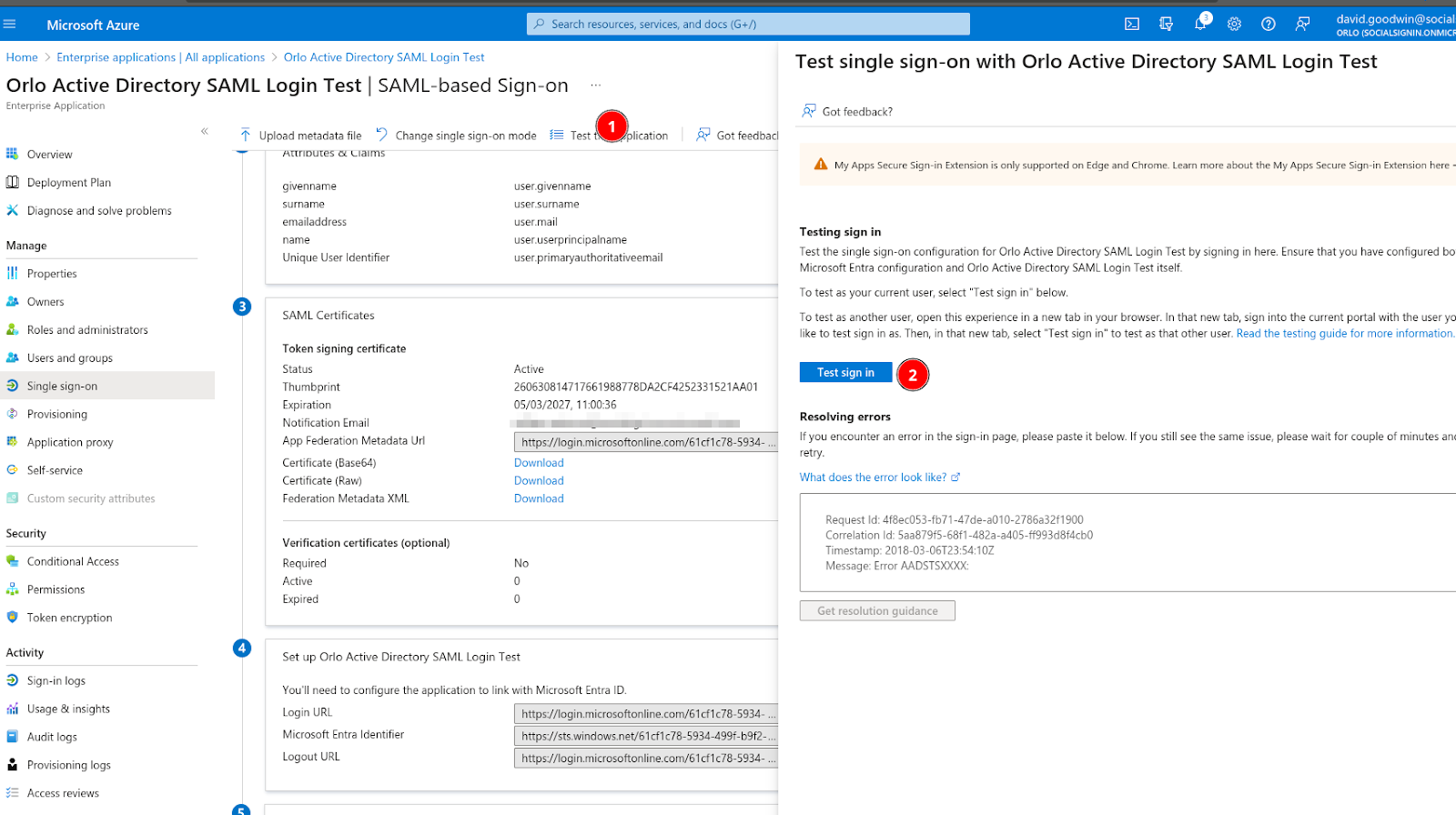
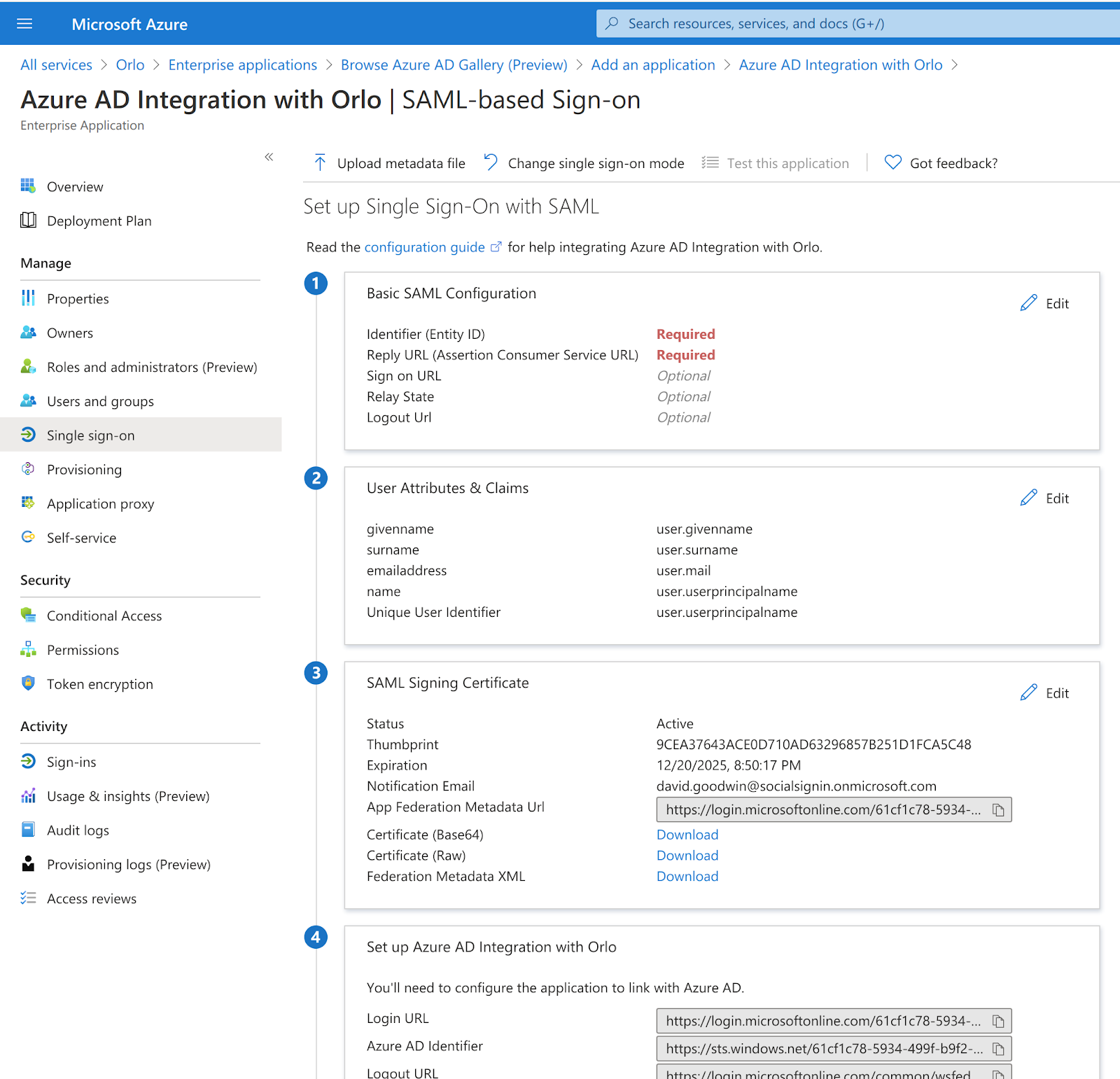
You should then see something like the below -
Within Orlo, https://www.orlo.app/#/settings/authentication
If you don’t see options for SAML2 or Active Directory under the SAML authentication section please contact support and ask for the feature to be enabled for you.
Choose to use ‘Active Directory’ under the SAML authentication section -
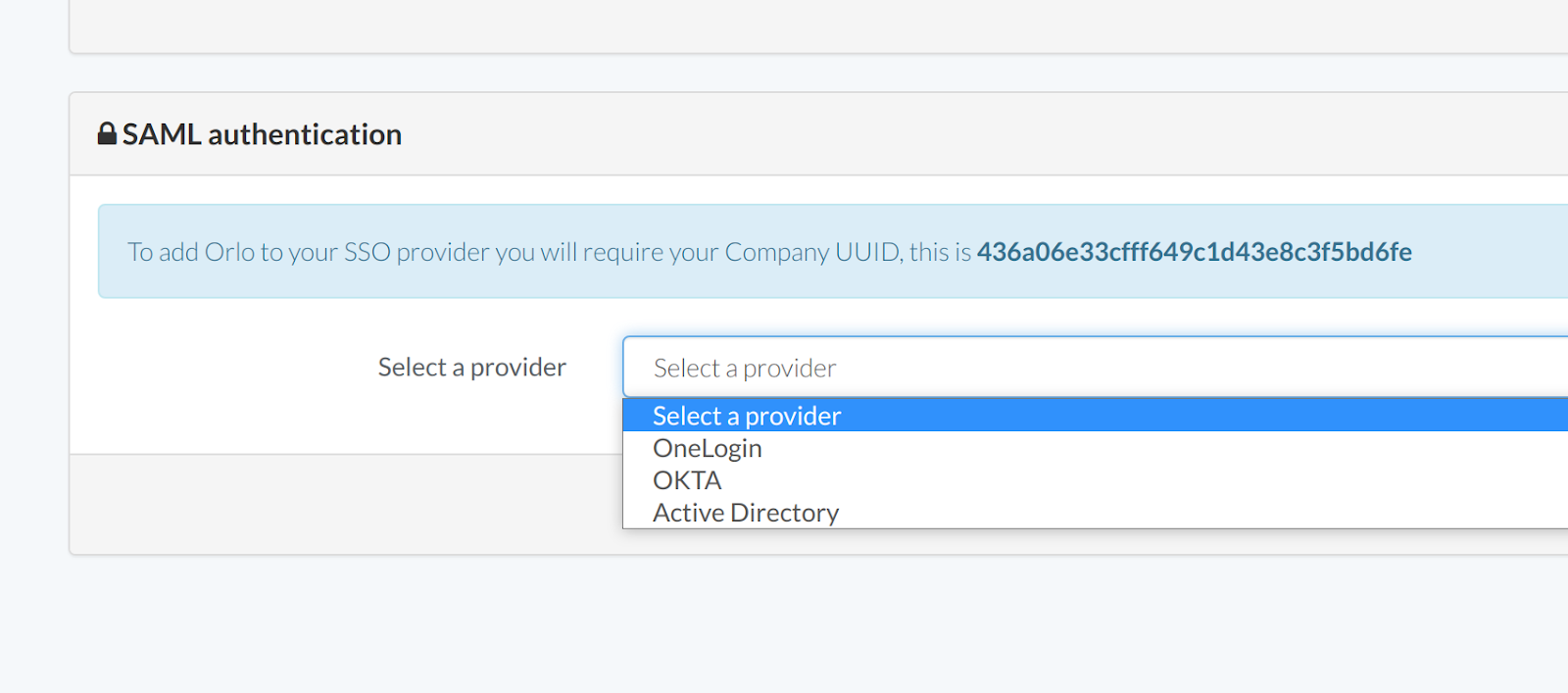
Note the ‘436a06..……’ Company UUID in the above screenshot (yours will be different).
This is needed in the next steps -
The following screenshot provides a mapping between Orlo fields and Azure -
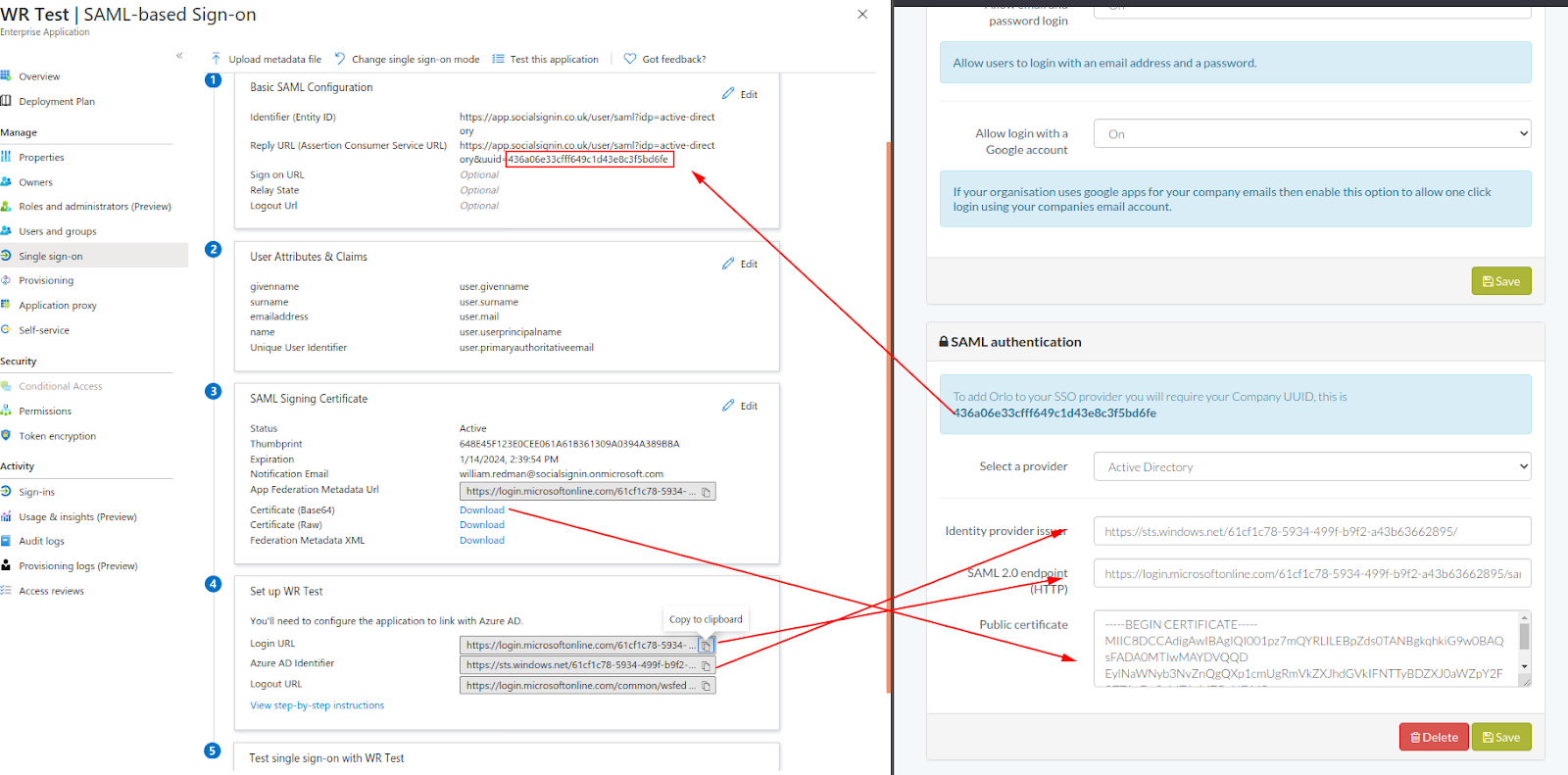
Specifically -
Under 1. “Basic SAML Configuration” -
- Configure the Identifier (Entity ID) to be : https://app.socialsignin.co.uk/user/saml?idp=active-directory
- Configure the Reply URL to be : https://app.socialsignin.co.uk/user/saml?idp=active-directory&uuid=YOUR_COMPANY_UUID (See above for the Company UUID)
Under 3. “SAML Signing Certificate”
Copy the Certificate (Base64) and paste it into Orlo into the Public Certificate Box (it should begin with ‘---- BEGIN CERTIFICATE----’.
Under 4. “Set up <your app name>”
Copy the Login URL into the Orlo “SAML 2.0 Endpoint (HTTP)” field
Copy the Azure AD Identifier field into the Orlo “Identity Provider Issuer” field
Click Save within Orlo.
You should now be able to login to Orlo by visiting the Login URL provided by Azure.